AWS SNS
We support sending messages to the Amazon Simple Notification Service (SNS) - a highly available, durable, secure, fully managed pub/sub messaging service that enables you to decouple micro services, distributed systems, and event-driven serverless applications.
SNS Topic
Follow the Creating an Amazon SNS topic article on the AWS support site to set up a new SNS Topic. Once configured, copy the ARN of the new SNS Topic to set up a new Contact.
IAM Settings
The AWS SNS integration requires an AWS IAM Access Key and Secret to authenticate requests against your AWS account, and the ARN of an SNS topic. This key only requires the sns:Publish permission to the provided ARN.
You can use this IAM Policy to grant access to your SNS topic:
{
    "Version": "2012-10-17",
    "Statement": [
        {
            "Sid": "Alerts",
            "Effect": "Allow",
            "Action": "sns:Publish",
            "Resource": [
                "your-sns-topic-arn"
            ]
        }
    ]
}
Simply replace the your-sns-topic-arn value with the ARN of your SNS topic, and apply this policy against the IAM Access Key.
Payload
The format of the body of the message delivered to your SNS Topic can be configured as Plain Text or JSON (default).
Plain Text
The Plain Text version of the message is a simple text description of the check result, with a link to a public report that includes all the details related to the check. For example:
1 hosts listed, 0 hosts delisted. See link for more details. https://rbltrack.com/fFMa1S
This is suitable for forwarding to messaging services, email, or SMS.
JSON
The JSON version of the message includes additional details, and is more suited for applications like a Lambda function, or passing to an HTTP service.
{
    "event_sid": "PK4e343bdbfaf0b0a4106bf39975943a69e6fe4c063fe64948372f36180c5d2f75",
    "event_type": "contact.trigger",
    "title": "RBL Listing Event",
    "message": "1 hosts listed, 0 hosts delisted. See link for more details.",
    "url": "https:\/\/rbltrack.com\/fFMa1S"
}
Adding a Contact
You can add an AWS SNS contact from the Manage ➡️ Contacts section of the Portal.
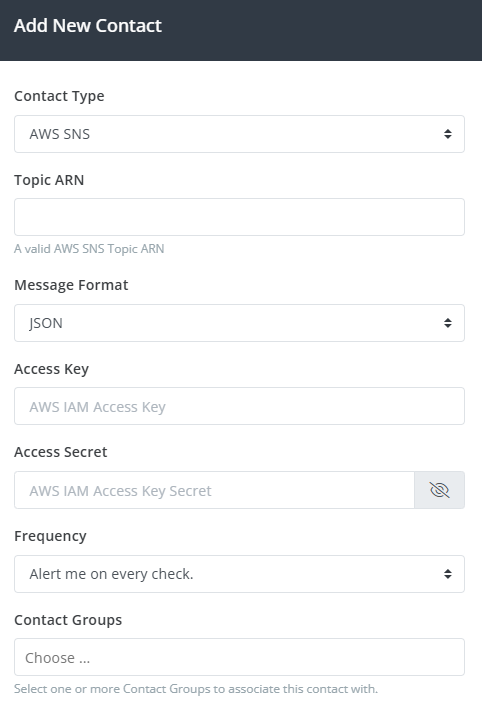
Select AWS SNS from the Contact Type drop-down, enter the ARN of the SNS Topic, the Access Key & Secret of your IAM Access Key, select a Message Format, a Frequency, and select one or more Contact Groups to associate with this new contact.
After clicking Add Contact, you'll receive a confirmation message with a confirmation link that you'll need to click on to confirm your contact.
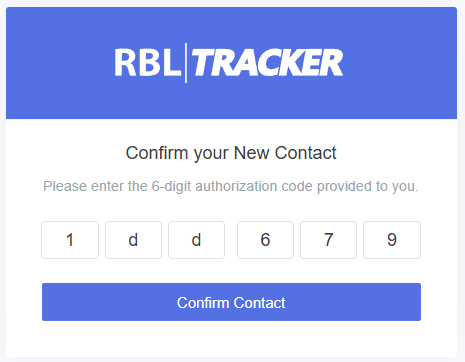
If you don't receive the confirmation message for some reason, you can also click the Resend Auth option to resend the confirmation message. Once a contact is confirmed, it will be ready to use.