Discord
Adding a Contact
Discord messages are configured using webhooks configured in the Discord interface. Start by going to discordapp.com, log in, and go your main messaging window.
In Discord
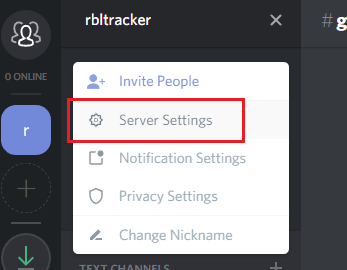
Click the drop-down menu at the top left corner of the page:

Then click on the Server Settings option:
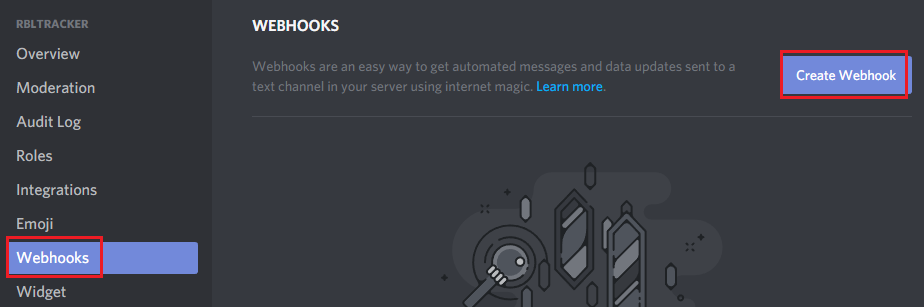
Then click on the Webhooks menu option, and click the Create Webhook button in the top right hand corner:
In the Edit Webhook dialog box, you can enter a name, channel, and webhook icon for this new webhook.
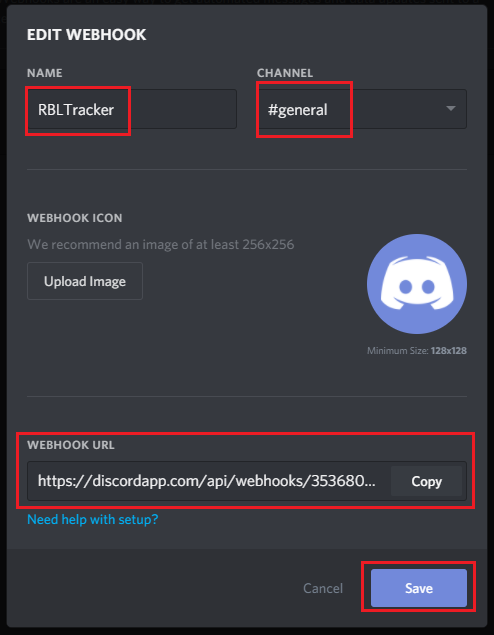
Once you've filled in those settings, click the Copy button beside the Webhook URL field, to copy the new webhook URL, then click Save.
In the Portal
Now that you've copied the Discord webhook URL, go to the Manage ➡️ Contacts section of the Portal, and click the Add Contact button in the top right corner:
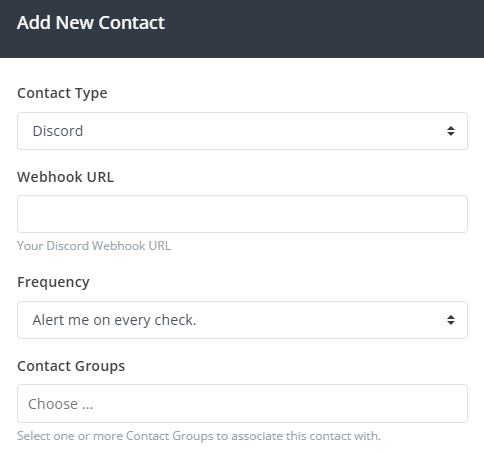
Select Discord from the Contact Type drop-down, enter the Discord webhook URL you copied in the Webhook URL field, select a Frequency, and select one or more Contact Groups to associate with this new contact.
After clicking Add Contact, you'll receive a confirmation message with a confirmation link that you'll need to click on to confirm your contact.
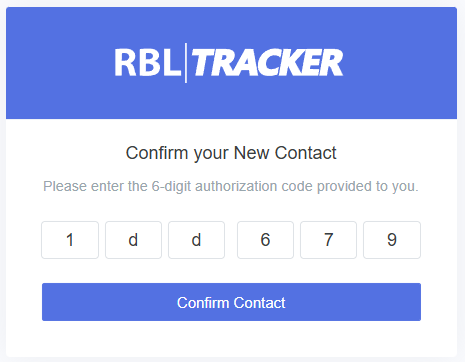
If you don't receive the confirmation message for some reason, you can also click the Resend Auth option to resend the confirmation message. Once a contact is confirmed, it will be ready to use.