Slack
Adding a Contact
Slack notifications are configured using a custom BOT app, which you can authorize right from the Manage ➡️ Contacts section of the Portal.
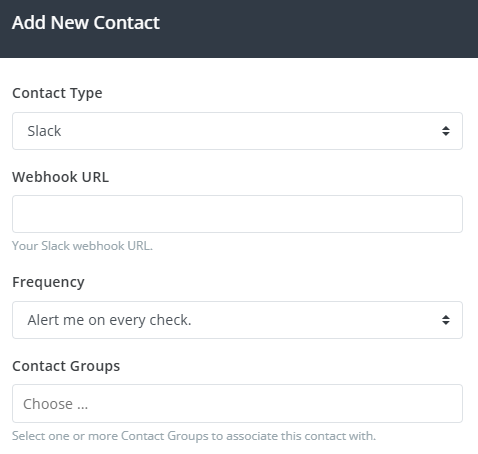
Select Slack from the Contact Type drop-down. This will automatically open the Slack authorization dialog, prompting you to authorize the installation of the app. This will let you confirm your identity, as well as select the channel to post notifications to:
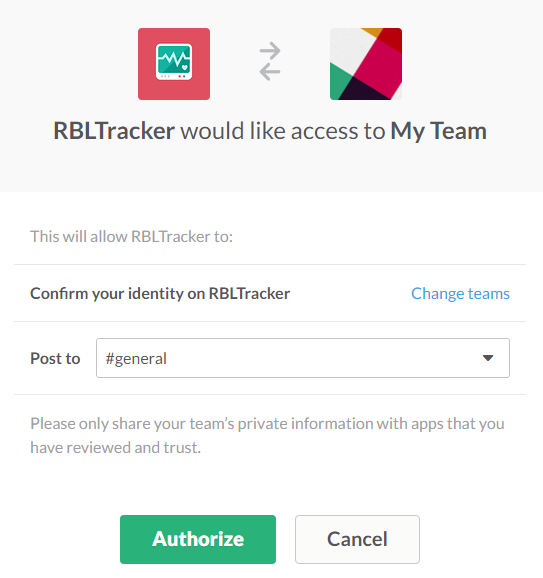
Click Authorize to grant permission to post messages to the selected channel. This authorization dialog will then close, and auto-populate the Webhook URL field with the authorized webhook URL. Select a Frequency, and select one or more Contact Groups to associate with this new contact.
After clicking Add Contact, you'll receive a confirmation message with a confirmation link that you'll need to click on to confirm your contact.

If you don't receive the confirmation message for some reason, you can also click the Resend Auth option to resend the confirmation message. Once a contact is confirmed, it will be ready to use.