Using Web Hooks
Webhooks provide real-time programmatic event notifications for your monitoring services, billing, and account status. For detailed information about webhook schema's and formatting, see the Webhooks section of the API documentation.
Adding a Webhook
To add a new Webhook, click Add Webhook from the the Dev ➡️ Webhooks section of the Portal, and provide a Display Name, the publicly accessible HTTP(s) URL for your webhook endpoint, and select one or more Events to trigger your webhook.
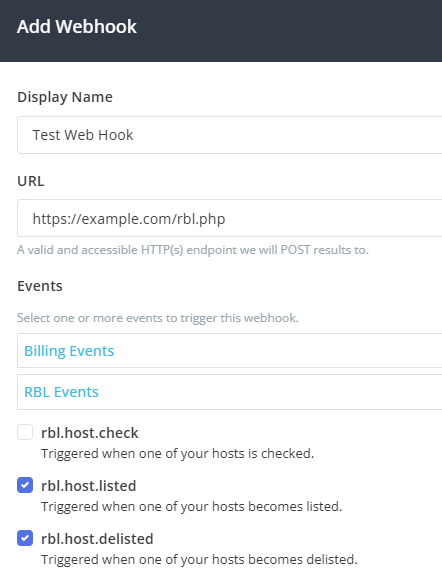
Webhooks are triggered using application/json POSTs to your endpoint.
Events
Each webhook can be configured to receive one or more Events from our platform, currently available in the following categories:
-
Billing Events – provides billing related event data, including payment alerts, renewal notices, and more.
billing.balance.alert– Triggered when your account balance goes below your alert threshold.billing.recharge.success– Triggered when an auto-recharge is successful.billing.recharge.failed– Triggered when an auto-recharge attempt fails.billing.renewal.success– Triggered when your billing package is successfully renewed.billing.renewal.failed– Triggered when a package renewal attempt fails.expiring.card.alert– Triggered when one of your credit cards is about to expire.expiring.plan.alert– Triggered when your monthly plan is set to expire and auto-renewal is disabled.
-
RBL Monitoring Events – provides real-time RBL monitoring event data, related to hosts being monitored on your account.
rbl.host.check.started– Triggered when a check is started for one of your hosts.rbl.host.check.completed– Triggered when a check completes for one of your hosts.rbl.host.listed– Triggered when one of your hosts becomes listed.rbl.host.delisted– Triggered when one of your hosts becomes delisted.
New event types are regularly added to the system to provide real-time data related to your account.
Testing
You can test your Webhook configuration by clicking on the Send Test link on the desired Webhook, and selecting the event type from the Event drop-down.
After you click the Sent Test Request button on the testing dialog, you'll receive test results, including response code and timing, TLS information, and response headers.