Microsoft SNDS
We support ingesting data from the Outlook.com Smart Network Data Services (SNDS) system, to check against your hosts. The Outlook.com Smart Network Data Services provides deliverability information related to the Microsoft email platform, with over 350 million active accounts world-wide.
Adding a SNDS Key
To add a new SNDS Key, simply provide a Friendly Name and the SNDS Key, which is available from the Automated Data Access section of the SNDS interface.
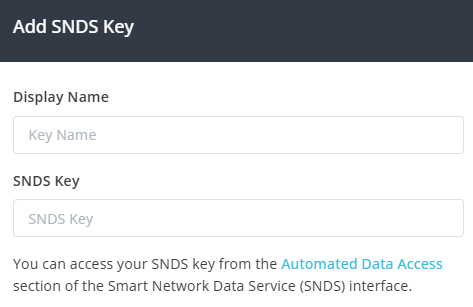
You can add up to 10 SNDS keys to your account.
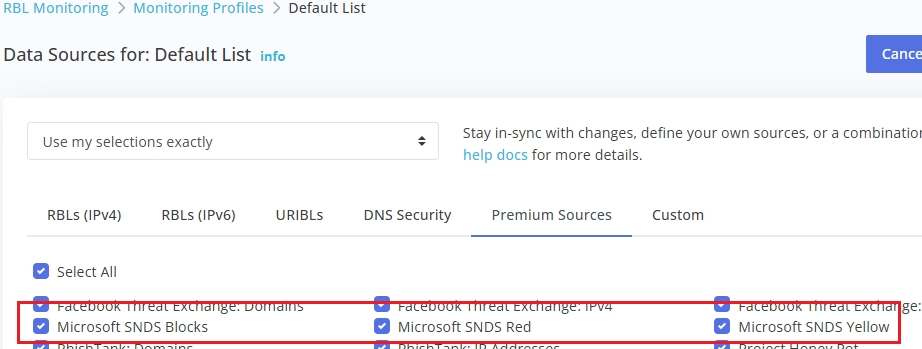
You must also make sure to enable the SNDS data sources on your Monitoring Profiles. This will be done by default if your Monitoring Profiles are configured to stay in-sync with our default settings, but if you've customized your Monitoring Profile, you may need to enable this manually:
Failed Keys
We will automatically retry failed connections to the SNDS service up to 3 times before marking the SNDS key as Failed.
If your key is marked as Failed:
- Double-check that your SNDS account is active.
- Ensure the key is correct.
- Make sure Automated Access is enabled on your SNDS account.
Once you've confirmed everything is configured correctly, you can Resume the key to re-activate it.
Pricing
There are no additional fees for including SNDS data in your result set.